
The short answer
- Have a PDF and need a link in two minutes? Upload it to Google Drive, set General access to Anyone with the link (Viewer), and copy the link.
- Want a link that previews well and never goes stale? Use a web page: your LinkedIn profile or a resume website.
- Applying through a job application form? Upload the file anyway. Your link goes in the website or LinkedIn field.
- Before you send any link: open it in a private browser window. If it asks you to sign in, it’s broken for everyone else too.
A link is easier to send than an attachment, works on any phone, and can stay up to date after you’ve sent it. But not every resume link is equal. Some ask the reader to sign in. Some show up in a chat as a bare file name. One kind we tested quietly puts your phone number in the preview. We pasted five kinds of resume link into the systems behind iMessage, Slack, LinkedIn and WhatsApp to see what the person on the other end actually gets.
What a resume link is (and the two kinds)
A resume link (or resume URL) is any web address that opens your resume. There are two kinds, and the difference matters more than which service you use:
- A link to a file. A PDF in Google Drive, Dropbox or OneDrive, or a PDF on a website. The reader sees your document, the same one you’d attach.
- A link to a page. Your LinkedIn profile, a Google Doc, or a resume website. The reader sees a web page that fits their screen and changes when you edit it.
A file link is quicker to make if you already have a PDF. A page link usually reads better on a phone, and a page that’s set up for sharing previews best, as the test below shows.
What your resume link looks like when you paste it
When you paste a link into a chat or a post, the app fetches the page and builds a preview card from a few tags in its code: a title, a description and an image (the Open Graph tags). That card is the first thing the recipient sees, before they decide to tap.
On October 17, 2026, we fetched 5 sample resume links the way iMessage, Slack, LinkedIn and WhatsApp do, using each app’s user agent, and recorded what each link handed back. That’s 20 fetches. Every link loaded for every app. What came back was very different.
- 5 link types tested in 4 apps 20 fetches, all loaded
- 3 of 5 returned a preview image Raw PDFs and Drive PDFs returned none
- 2 of 5 had an image big enough for a full-width card LinkedIn's photo is 200 px, shown as a thumbnail
- 1 of 5 put contact details in the preview text The Google Doc, from its first lines
What each link gave the preview, drawn from the tags it returned
-
Link type 1: A PDF file on a website
example.com/files/resume.pdf No title, just the addressNothing but the address.
- A PDF isn’t a web page, so there’s no title, description or image to show
- What appears depends on the app, often just the link or the file name
-
Link type 2: Google Drive PDF
drive.google.com Resume_final_v3.pdfYour file name becomes the headline.
- Title = the file name, site = Google Docs
- No description and no image
- Rename the file to
Jordan Lee - Resume.pdfbefore you share it
-
Link type 3: Google Doc
docs.google.com Jordan Lee Resume JORDAN LEE · 123 Main St, Austin, TX · (555) 010-0199 · jordan.lee@email.com · Product designer with five years...Shows the top of your document, contact details included.
- Description = the first 188 characters of the document’s text
- Image = a 1200×630 crop of the page. In our sample it started below the name, and the text was too small to read
-
Link type 4: LinkedIn profile
linkedin.com Jordan Lee - Acme Inc. | LinkedIn Product designer at Acme Inc. · Experience: Acme Inc. · Education: University of TexasA clear title and a small photo.
- Title = your name and current company
- Image = your profile photo at 200×200 px. LinkedIn shows images under 401 px wide as a thumbnail
-
Link type 5: AboutStack resume website
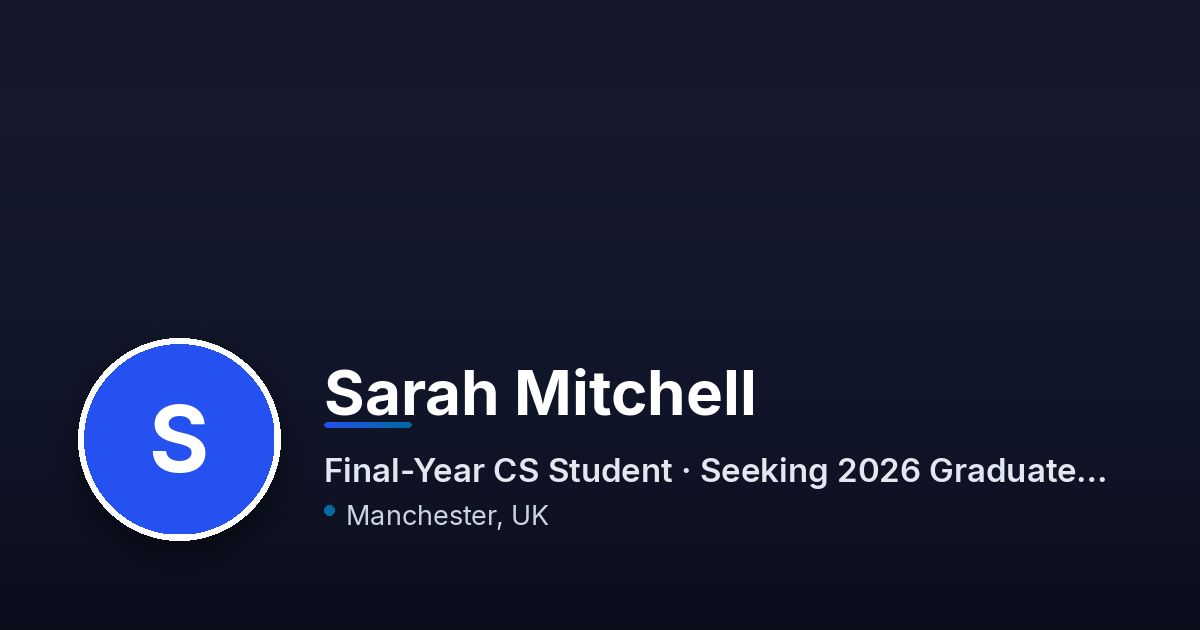 sarah.aboutstack.com Sarah Mitchell, Final-Year CS Student · Seeking 2026 Graduate Roles Final-year Computer Science student who learns by shipping. Looking for a graduate software role...
Name, headline and a full-width card.
- Title = name and headline, description = the resume’s summary
- Image = a 1200×630 card made for each resume
A file link gives the preview almost nothing to work with. The PDF returned no tags at all, and the Drive PDF returned only its file name. If your file is called Resume_final_v3.pdf, that’s the headline your recruiter sees. Rename it before you share.
A Google Doc shares more than you might expect. Its preview text was the first 188 characters of the document. If your Doc opens with your contact details, they end up in a chat preview that anyone in the channel can read. If you share a Doc, keep your street address off it.
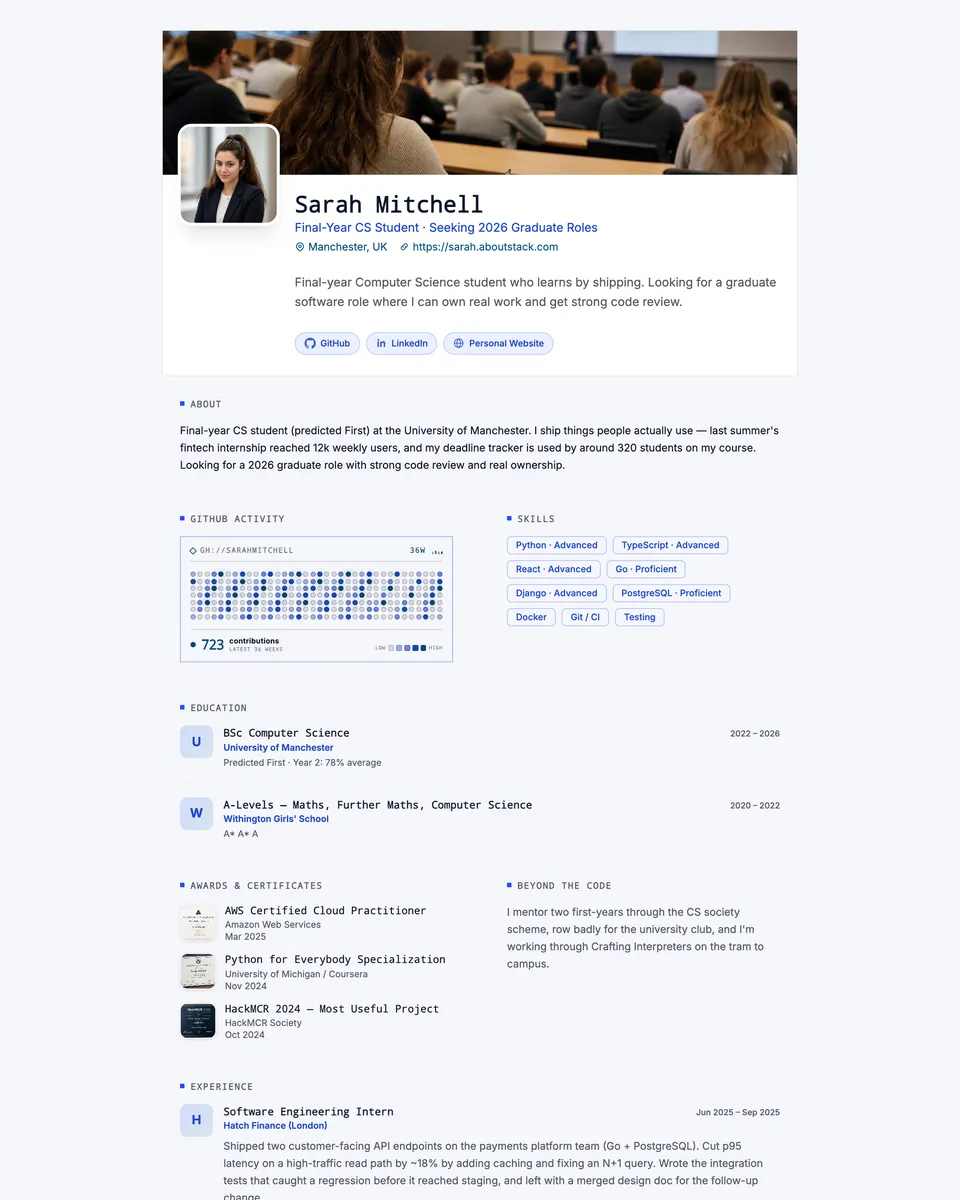
Pages built to be shared preview best. LinkedIn returned a clear title and description, but its image was a small profile photo, which LinkedIn’s own guidelines say shows as a thumbnail. The AboutStack page returned a title, a description and a full-size image made for previews, which is what any page with these tags set up can do. Apple’s guidance for Messages says images from these tags are shown at a fairly large size, so that image is most of what the recipient sees.
How we ran the test, and its limits
We picked one public example of each link type: a university career center’s sample resume PDF, a resume PDF shared on Google Drive with Anyone with the link, a public Google Docs resume template, a public figure’s LinkedIn profile, and AboutStack’s showcase page at sarah.aboutstack.com. We fetched each link with the user agents of iMessage, Slack, LinkedIn and WhatsApp, plus a normal browser, and recorded the HTTP status, the page title, every Open Graph and Twitter Card tag, and whether the preview image loaded and how big it was.
Limits:
- One example per link type. Other files, documents and profiles return the same kinds of tags, but the exact text differs.
- We fetched from our own machine. Slack, LinkedIn and WhatsApp fetch from their servers, and iMessage fetches from the sender’s device, so a site can answer them a little differently.
- Slack documents its user agent. The other three are the strings these apps are commonly seen sending. They aren’t officially documented.
- We recorded what each link offers a preview. Each app decides how to lay out the card, and some show less.
- We make AboutStack and set up its preview tags, so read that row as “what a page with these tags set returns”. A Carrd, Google Sites or GitHub Pages site can return a large card too if it’s set up for it.
Download the data (CSV). Third-party addresses are replaced with their link type.
How to create a resume link: 4 options, ranked
Each of these is a real option, and the free ones are fine for most people. This is the order we’d pick them in for sharing in messages, email and networking.
Where a resume website fits
The file links above all share the same problems: a sharing setting to get wrong, a file name for a headline, a document that’s hard to read on a phone, and a new link every time you forget to replace the file properly. A resume website removes those by design. It’s a public page with no sharing settings, so nobody hits a “Request access” screen. It fits a phone screen. The preview shows your name and headline. And when you fix a typo, every link you’ve already sent shows the fix.
That’s the job AboutStack does. You fill in your resume, pick a template, and publish it at yourname.aboutstack.com, with a preview card made for each resume. If you apply for different kinds of roles, each resume can have its own link (one is included, extra ones are $4.99/month each). It’s not the only way to get a resume website. Google Sites, Carrd and GitHub Pages are free and work well if you’re happy to build and maintain the page yourself.
How to share your resume as a Google Drive link
This is the most common way to get a resume link, and the steps take about two minutes. The step people miss is step 3.
- Rename the file to something a stranger would trust, like
Jordan Lee - Resume.pdf. On a Drive PDF, the file name is the preview headline. - Upload it to Google Drive (New → File upload).
- Open Share, and under General access, change Restricted to Anyone with the link. Restricted is the default, and it means only people you’ve added by email can open it.
- Keep the role as Viewer. Never send an Editor link.
- Copy the link, then paste it into a private browser window. If you see the resume, it works. If you see “You need access” or a sign-in page, go back to step 3.
On your phone, the Drive app has the same settings: tap the three dots next to the file, then Share (or Manage access) and change General access. If you’re signed in with a school or work Google account, your organization may limit who you can share with outside it, so use a personal Google account for your resume.
Dropbox and OneDrive
- Dropbox: on dropbox.com, hover over the file, click Share, then Copy link. Under Manage, choose Link for viewing so nobody gets edit access. People without a Dropbox account can still preview the file.
- OneDrive: select the file, click Share, then the settings gear. Choose Anyone, and uncheck Allow editing, which Microsoft turns on by default. Then copy the link. Moving the file to another folder breaks the link, so leave it where it is.
When you still need a PDF
Whenever a form or a person asks for a file. A link doesn’t replace your resume on a job application. It sits next to it.
- 60 of 60 forms had a resume upload
- 51 of 60 made the resume required
- 0 of 60 accepted a link instead of the file
- 54 of 60 had somewhere to put a link website, LinkedIn, GitHub or another URL field
All 20 Greenhouse forms let you paste your resume as plain text instead of uploading a file, but not one form in our study took a link in place of a resume. Keep a PDF ready for:
- Application forms. Upload the file in the resume field, and put your link in the website or LinkedIn field. Our guide to what to put in the personal website field covers which link to choose.
- “Please send your resume.” When a recruiter asks for your resume by email, attach the file and add your link in the message or signature. They may need to forward the file or upload it into their own system.
- Printing. Interviews, career fairs and anything on paper.
Some people worry a link seems lazy when a file was asked for. It can, if you send a link instead of the file. Sent with the file, it just gives the reader a faster way to see more.
Where to put your resume link
Once you have a link you trust, use it everywhere you’d otherwise attach or retype your resume:
- The website field on applications. 34 of the 60 forms in our study had one. Here’s which link to put there if you have more than one.
- Your email signature. One line, under your name:
yourname.aboutstack.com. - The header of your PDF resume. Next to your email and phone, as short, readable text that’s also clickable. Anyone holding the file can get to the always-current version.
- LinkedIn. Add it to Contact info as a website. To feature it on your profile: Me → View profile → Add profile section → Recommended → Add featured, then the + icon and Add a link.
- Networking messages. In a DM or a follow-up after a coffee chat, a link with a good preview card is easier to open than an attachment.
- A QR code, for paper. At career fairs or on a printed resume, a QR code saves someone typing. Make it point to a link you control and can update, test it with two phones, and print the address next to it for people who won’t scan.
How to send a resume link in an email
Put the link in the body, on its own line, with a few words that tell the reader what they’ll get. Keep the full address visible so it still works if the email is printed or forwarded as plain text.
Hi Sam, thanks for the chat today. My resume is attached, and you can also see it online here, with my recent projects: https://jordanlee.aboutstack.com
In Gmail or Outlook you can also turn words into a link: select the text, press Ctrl+K (Cmd+K on a Mac) and paste the address. Use that for a short phrase like “my resume”, not for the only copy of the address.
How to check your resume link before you send it
Broken resume links usually come from copying the wrong thing: a share link full of tracking codes, a shortened link, or a Drive file nobody else can open. Paste yours below. The checker runs in your browser and flags risky patterns. It can’t see whether a Drive file is actually shared, so still open it in a private window.
Check your link before you paste it
Runs in your browser. Nothing is sent anywhere.
Do
- Open it in a private window first, to see exactly what a stranger sees
- Use the full, readable address with
https://, copied from the address bar - Rename files before you share them, since the file name can become the preview title
- Paste it into a chat with yourself to see the preview card before a recruiter does
Don’t
- Send a Drive or Dropbox file that’s still Restricted, or any Editor link
- Use link shorteners like bit.ly, which hide where the link goes
- Share a Google Doc with your home address at the top. It ends up in the preview
- Send a link instead of a file when someone asked for the file
Keep one link instead of re-sending files
The best part of a resume link is that you can fix a typo after you’ve sent it. That only works if the link stays the same:
| Link type | When you update your resume | Same link? |
|---|---|---|
| Drive PDF | Upload a new version of the same file (Manage versions) | Yes, with Manage versions. Uploading it as a new file gives a new link |
| Google Doc | Edits show up as you type, unfinished ones too | Yes |
| Edit your profile | Yes, unless you change your custom URL | |
| Resume website | Edit the page | Yes, as long as the site stays online |
Previews can lag behind. Slack caches each link for around 30 minutes, and other apps can keep showing an old card for longer. The page itself always shows your latest version.
No good link yet? A quick fix
You can have a link you’re happy to send today:
- Two minutes: share your PDF from Drive using the steps above, and test it in a private window.
- Five minutes: set a clean LinkedIn URL (Me → View profile → Edit public profile & URL) and update your headline.
- Once, then reuse it everywhere: publish a one-page resume website. With a builder made for resumes, most of the work is the resume you’ve already written.
| Option | Cost | Preview card | Good for |
|---|---|---|---|
| Google Drive PDF | Free | File name only | A quick link to the file you have |
| LinkedIn profile | Free | Title, description, small photo | Networking |
| Google Sites or Carrd | Free, paid plans for extras | Depends on how you set it up | A simple page you design yourself |
| GitHub Pages | Free | Whatever you code | Developers comfortable with Git |
| AboutStack | 7-day free trial, then $5.99/month | Name, headline and a full-size card | A resume site at yourname.aboutstack.com that previews well and updates everywhere |
Whatever you use, try this before your next application: paste your link into a chat with yourself and look at the card. If you’d tap it, send it. If all you see is a file name or a sign-in page, fix that first.
FAQ
Can I send my resume as a link instead of attaching it?
In a message or a networking email, yes, as long as the link opens without a sign-in. When an application form or a job posting asks for a file, upload the file. Every one of the 60 application forms we checked had a resume upload, and none accepted a link in its place.
How do I make a link for my resume for free?
Upload your PDF to Google Drive, open Share, set General access to Anyone with the link as a Viewer, and copy the link. Then open it in a private browser window to check that it works for someone who isn’t you.
Why does my Google Drive resume link say “You need access”?
The file is still set to Restricted, which is Drive’s default. Only people you’ve added by email can open it. Change General access to Anyone with the link, then test the link in a private window.
Can people download my resume from a Google Drive link?
Yes, by default. Viewers can download, print and copy a shared file. The owner can turn that off in Drive’s advanced sharing settings, but anyone can still take a screenshot, so share only what you’re happy to have saved.
Can people see my email address when I share a Drive link?
Yes. Google says that when you share a link to a file, your name and email are visible as the file’s owner. That’s usually fine for a resume, but use an account with a professional address.
Does an applicant tracking system accept a resume link instead of a file?
Not in our study of Greenhouse, Lever and Ashby forms. All 60 forms had a resume upload and 51 made the resume required. All 20 Greenhouse forms let you paste your resume as text instead, but none of the 60 took a link. Put your link in the website or LinkedIn field.
Should I put a QR code on my resume?
Only on printed copies, like the ones you hand out at a career fair. On screen, people click the link instead. Point the code at a link you control and can update, test it with two phones, and print the address next to it for anyone who won’t scan.
Should I use a link shortener for my resume?
No. A shortener hides where the link goes, which can look like spam, and the link breaks if the service changes. Use a clean, readable address instead.
How do I put a link on my PDF resume?
Type the address as visible text in your header, short and readable (like yourname.aboutstack.com or linkedin.com/in/yourname), and make it clickable. Export the PDF, then click the link in the exported file to check it.
Will the preview update after I change my resume?
Not always right away. Apps cache previews. Slack says it caches each link for around 30 minutes, and other apps can show an old preview for longer. The page itself updates as soon as you change it.
Sources
- Link-preview test: 5 resume links fetched as 4 apps, Oct 17, 2026 (AboutStack, data download) Our dataset. One row per link and app, with the HTTP status, the title, description and image each link returned.
- Website-field study: 60 US application forms, collected Oct 11, 2026 (AboutStack) Resume upload fields, required flags and the paste-text option, from our earlier study.
- Google Drive Help: Share files from Google Drive Restricted, Anyone with the link and Public access; the owner’s name and email are visible; owners can stop viewers downloading.
- Google Drive Help: Access changes made to your files (upload a new version) How to upload a new version of a PDF or other non-Google file to the same Drive file, instead of adding a second copy.
- Slack: Slack Robots Slack’s link-expanding bot reads Open Graph and Twitter Card tags and caches results for around 30 minutes.
- Apple: Best Practices for Link Previews in Messages (TN2444) Messages builds previews from Open Graph tags and shows og:image at a large size.
- LinkedIn Help: Make your website shareable on LinkedIn The og: tags LinkedIn reads; images under 401 pixels wide show as a thumbnail.
- LinkedIn Help: Manage featured samples of your work on your profile How to add links and documents to the Featured section.
- LinkedIn Help: Manage your public profile information People who aren’t signed in see a simplified public version of your profile, and you choose which sections appear.
- Dropbox Help: How to share in Dropbox Share → Copy link, and Link for viewing for a view-only link.
- Microsoft Support: Share OneDrive files and folders The Anyone link setting; Allow editing is on by default; links stop working if you move the file.
- LinkedIn Help: Customize your public profile URL How to get linkedin.com/in/yourname.
- The Open Graph protocol The og:title, og:description and og:image tags that link previews are built from.